Introduction: From Topic to PPT, the Hard Way vs. the Smart Way
You know the feeling: you have a clear topic in mind and a deadline for a presentation, but turning that topic into a complete PowerPoint deck is another story. The first slide is always the hardest. You open PowerPoint, stare at a blank screen, and start juggling browser tabs, notes, and half-finished outlines.
Traditionally, creating a PPT means doing everything by hand: researching, summarizing, deciding on structure, writing slide content, and then building charts and layouts. It’s not just time-consuming – it also depends heavily on your experience and your ability to turn messy information into a clean story.
This is where an AI-powered “Topic to PPT” workflow changes the game. Instead of manually stitching everything together, you give the system a topic and let it handle the heavy lifting: researching, exploring angles, structuring the narrative, and generating slides with charts and insights.
In this guide, you’ll see exactly how to convert any topic into a ready-to-edit PowerPoint deck in minutes using Powerdrill Bloom. We’ll break down the workflow step by step, show how AI exploration fits into the process, and share practical tips so you can spend less time formatting slides and more time refining your ideas.
What Is a "Topic to PPT" Workflow?
A "Topic to PPT" workflow is a new way of building presentations: instead of starting from a blank slide, you start from a topic, and let AI handle research, structure, and first-draft slides for you. To understand why this matters, it helps to compare it with the traditional approach.
The Traditional Workflow (Manual)
In the manual workflow, everything starts with a topic and ends with you doing all the work in between:
You decide on a topic for your presentation.
You search the web, read articles, reports, and blog posts, and copy useful pieces into a document.
You try to organize these fragments into a logical outline: introduction, problems, solutions, examples, conclusion.
You open PowerPoint and manually turn that outline into slides: titles, bullet points, speaker notes.
You design charts and tables from scratch using whatever data you can find or already have.
This process can easily take several hours for a decent deck, and much longer if you need data-backed content or a more polished structure. It’s also easy to miss important angles or end up with a slide deck that feels like a collection of disconnected notes rather than a coherent story.
The AI-Powered Workflow with Powerdrill Bloom
With Powerdrill Bloom, the workflow looks very different:
You enter your topic into Bloom (for example, "AI in Education for University Students").
Powerdrill Bloom automatically searches and analyzes relevant information around that topic.
It explores key questions, angles, and supporting points, then organizes them into a structured outline.
Based on this outline, Bloom generates slide content and suggests or creates data-backed charts.
You export a ready-to-edit PowerPoint deck and make final adjustments to fit your audience and brand.
Instead of juggling research, structure, and design yourself, Bloom acts as an AI research assistant and slide generator in one. The result is a deck that already has a logical narrative and visual support, so you can start from an 80% complete presentation and focus your time on tailoring the final 20%: your own data, your own stories, and your personal style.
Step-by-Step: How to Convert Your Topic to PPT with Powerdrill Bloom
In this section, we'll walk through the complete workflow from a raw idea to a ready-to-edit PowerPoint deck. You can follow these steps with any topic you have in mind: a team update, a sales pitch, a class presentation, or a webinar.
Step 1: Choose and Enter Your Topic
Start by opening Powerdrill Bloom and focusing on a single, clear topic you want to present.
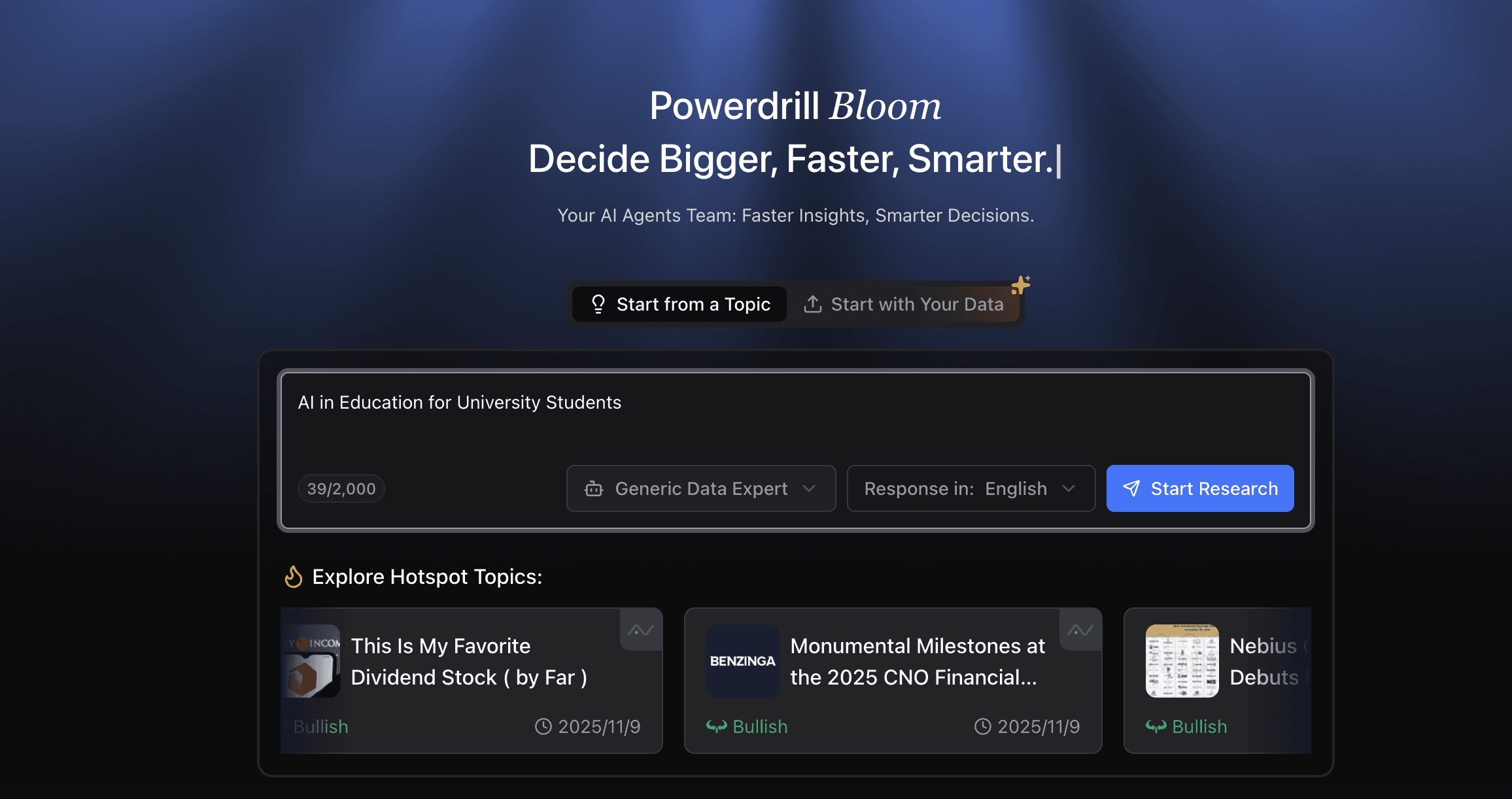
Sign in/up to Powerdrill Bloom, and enter your topic, for example, "AI in Education for University Students", and click "Start Research".
Step 2: Let Bloom Search, Analyze, and Explore
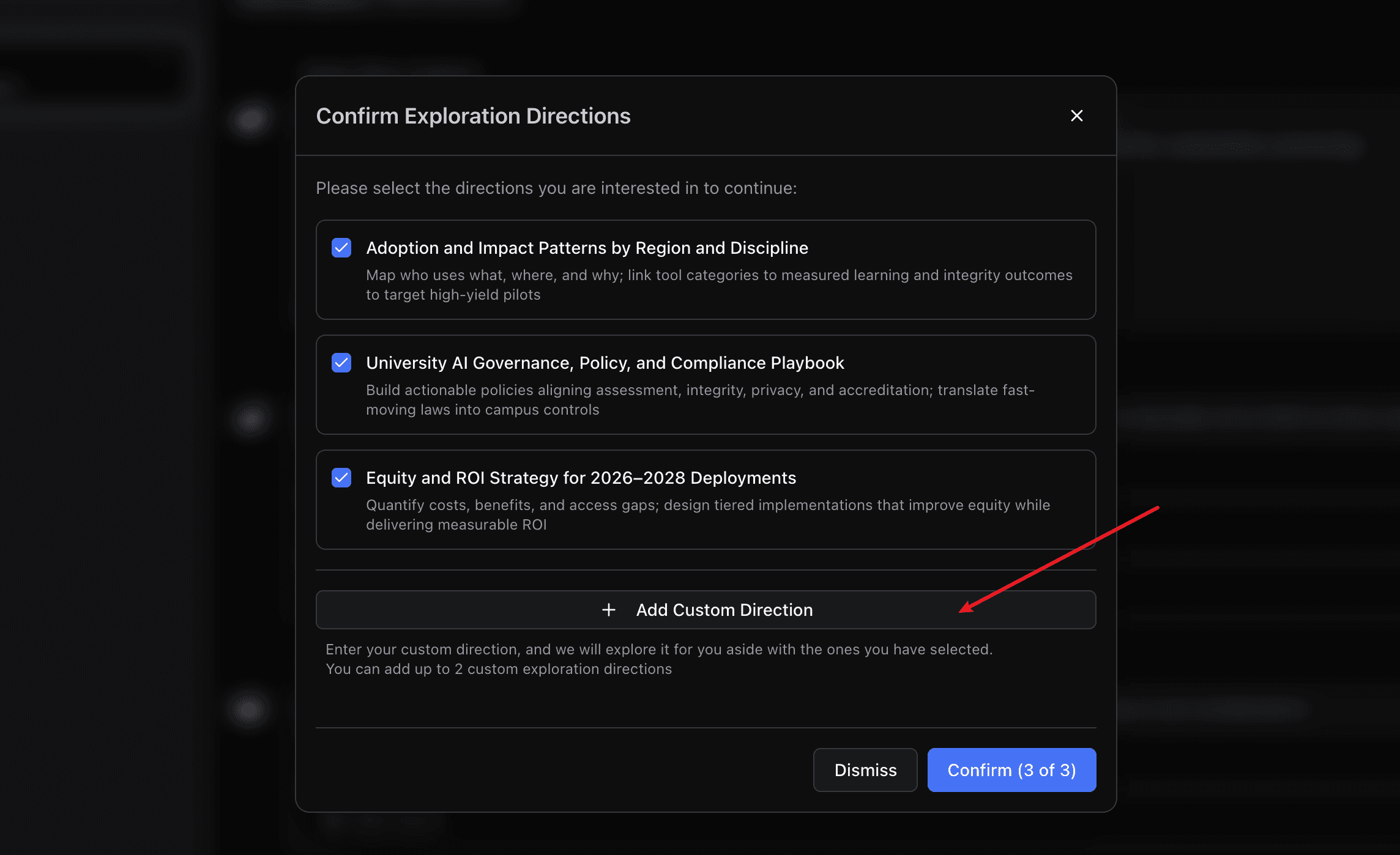
Confirm the exploration paths or enter your interested ones, and click "Confirm".
Check the overview of each exploration path and click "Advanced Insights" to unlock more insights.
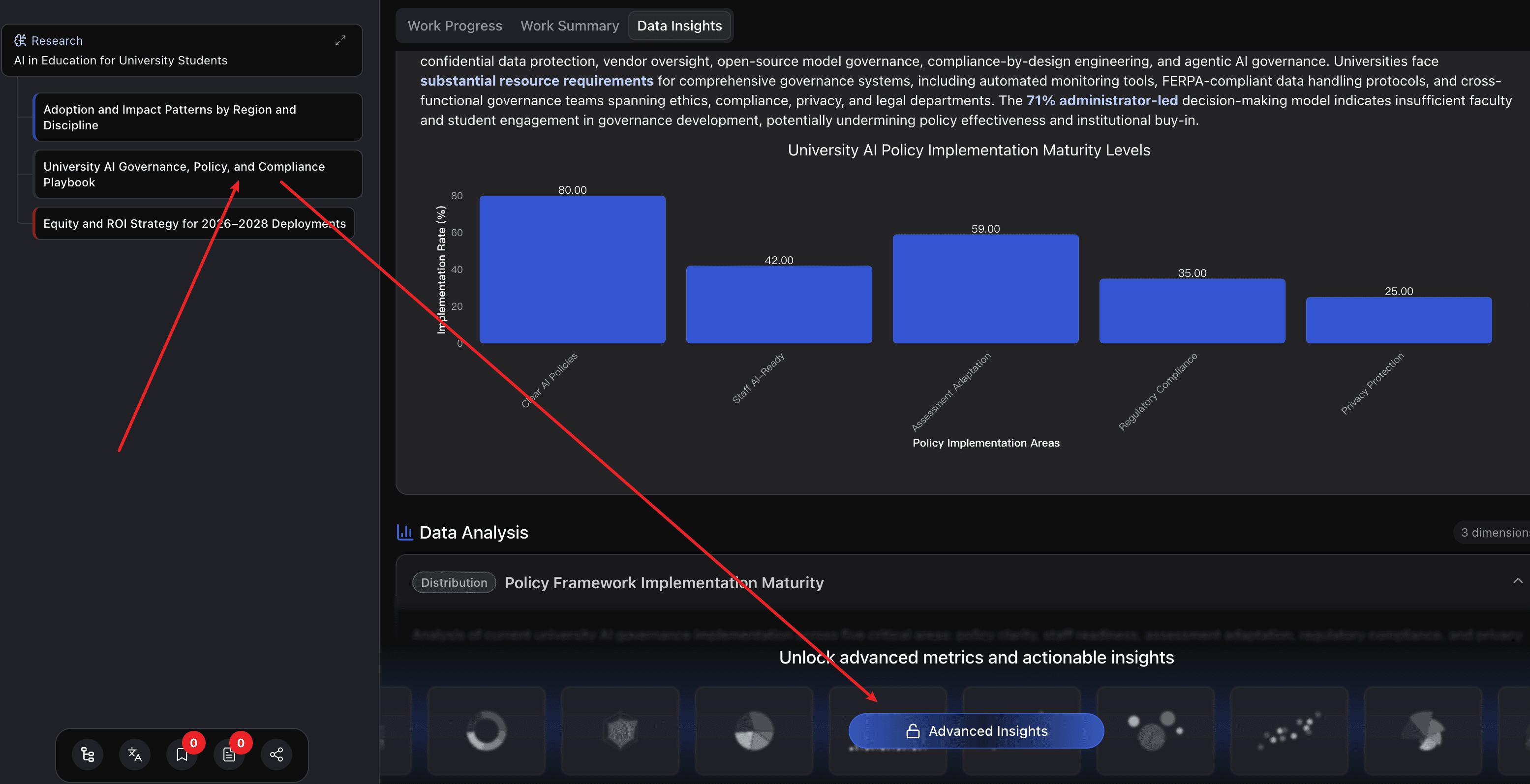
During this phase, Bloom doesn’t just list facts; it tries to understand how different pieces of information connect. It identifies common questions people ask, recurring challenges, key frameworks, and examples that can make your presentation more compelling. Think of it as having an AI research assistant that quickly maps out the “idea space” for your topic.
Step 3: Favorite Nodes and Generate Slides
Click "Generate Slides" in the upper right corner of the node details page.
Select the node whose content you want to include into your slide deck, and "Next".
Select a theme and click "Start Generating Slides".

After the slide deck is generated, you can download it to edit, share, or present.
Tips: Getting the Best PPT from Your Topic
Powerdrill Bloom can generate a solid presentation from almost any topic, but a little bit of upfront thinking will dramatically improve the final result. In this section, we’ll walk through a few practical tips to help you get the most out of the Topic to PPT workflow.
1. Be Specific with Your Topic
Bloom can handle broad topics, but “broad” often means “less focused.” If you want a deck that feels sharp and relevant, it’s better to narrow down your topic instead of using a single, high-level keyword.
Compare these two inputs:
“Marketing”
“2025 B2B SaaS Content Marketing Strategy”
The first one is extremely wide — Bloom has to guess which angle you care about: brand awareness, performance marketing, social media, campaigns, etc. The second one tells Bloom exactly what you’re interested in: the time frame (2025), the context (B2B SaaS), and the focus area (content marketing strategy).
Whenever possible, add qualifiers like industry, audience, region, or time frame to your topic. A few extra words at the beginning can save you a lot of editing later because Bloom will generate a structure that already matches your real use case.
2. Add Context: Audience and Purpose
The same topic can lead to completely different presentations depending on who you’re talking to and why. A deck about “AI in Healthcare” for technical engineers should not look the same as a deck for hospital executives or patients.
You can help Bloom by embedding audience and purpose directly in your topic. For example:
“AI in Healthcare: Overview for Hospital Executives”
“AI in Healthcare: Technical Deep Dive for Data Scientists”
“AI in Healthcare: Patient Education Session”
By doing this, you’re telling Bloom how formal the tone should be, how deep the technical content can go, and what kind of outcomes you care about (strategic decisions vs. detailed implementation vs. basic education). The generated outline, slide titles, and examples will be much closer to what you need, which means fewer edits and faster turnarounds.
3. Combine Your Own Data with AI-Generated Insights
Bloom is excellent at building structure, summarizing concepts, and suggesting visualizations, but your own data is what makes a deck truly convincing and unique. A powerful workflow is:
Use Bloom to generate the overall narrative, sections, and sample charts.
Export the PPT and open it in PowerPoint.
Replace sample numbers, generic examples, or illustrative metrics with your real data.
For instance, Bloom might generate a chart showing “revenue growth by quarter” based on a generic pattern. You can simply keep the chart layout but plug in your company’s actual revenue numbers. The same applies to user growth, conversion rates, cost breakdowns, or any KPI you track.
This way, you get the best of both worlds: Bloom gives you a clear, data-friendly structure and visualization logic, and you inject authenticity with your own numbers and stories. The result is a deck that looks professionally designed and is deeply grounded in your reality.
Use Cases: When to Convert Topics to PPT with Powerdrill Bloom
The Topic to PPT workflow is flexible enough to support many kinds of presentations, from quick internal updates to high-stakes pitches. In this section, we’ll look at a few practical scenarios where Powerdrill Bloom can save you the most time and give you the biggest boost in quality.
Internal Team Updates and Knowledge Sharing
Weekly or monthly team meetings often require quick slide decks to summarize progress, share learnings, or align on next steps. The problem is that these decks are usually created last-minute, on top of everything else you have to do.
With Bloom, you can start from simple topics like:
“Monthly Product Update for Engineering Team”
“Q3 Marketing Performance Review for Leadership”
“Customer Feedback Summary for Support Team”
Bloom turns these topics into structured outlines with key sections such as goals, highlights, issues, and next steps. You can then plug in your actual metrics and examples, instead of worrying about the slide structure itself. The result: consistent, clear internal decks that take a fraction of the usual time to prepare.
Client Proposals and Sales Pitches
Sales and account teams often need to tailor slides for different clients, industries, and use cases. Building each deck manually can be slow and repetitive, even though many of the core ideas are similar.
Here, Topic to PPT acts like a template generator that adapts to the situation. For example, you can input:
“AI Analytics Solution Proposal for Retail Client in Europe”
“Demo Overview: Powerdrill Bloom for SaaS Product Teams”
“Value Proposition Deck for Renewals Presentation”
Bloom will generate a narrative that introduces the problem, explains your solution, highlights benefits, and suggests case studies or proof points. You can quickly customize the content with client logos, specific metrics, and real case stories. This lets you produce more tailored proposals faster, without starting from a blank deck every time.
Training Sessions, Workshops, and Webinars
Educational content—such as training sessions, onboarding workshops, and webinars—often requires structured, easy-to-follow slides. The challenge is to strike the right balance between theory, practical steps, and examples.
By starting with topics like:
“Introduction to Data Literacy for New Employees”
“Data Visualization Best Practices Workshop”
“Getting Started with AI-Powered Analytics for Business Users”
Bloom can generate a clear teaching flow: definitions, key concepts, step-by-step guidance, examples, and recap. You get a well-organized deck that feels like a mini-course outline. From there, you can add screenshots of your own tools, hands-on exercises, or demo scenarios to make the session more interactive.
Thought Leadership and Content Presentations
When you’re speaking at a conference, meetup, or internal leadership forum, you often need a “thought leadership” style deck that frames a problem, shares insights, and points to future trends. Crafting the narrative for this type of presentation can be especially time-consuming.
You can kick off with topics such as:
“The Future of AI-Driven Business Intelligence in 2025”
“How Data Culture Transforms Decision-Making in Enterprises”
“From Dashboards to Conversations: The Next Wave of Analytics”
Bloom will help you explore angles, identify key talking points, and suggest a storyline that leads the audience from context to insight to action. You then refine it with your own opinions, real-world stories, and unique perspective, turning a generic topic into a memorable, point-of-view-driven talk.
Academic, Research, and Student Presentations
Students, researchers, and educators also benefit from a fast Topic to PPT workflow. Whether it’s a classroom presentation, a research summary, or a project defense, the basic need is the same: turn a research topic into a clear, structured set of slides.
Example topics might include:
“Impact of Social Media on Teen Mental Health: Research Overview”
“Machine Learning Basics for Non-Technical Students”
“Semester Project: Building a Recommendation System”
Bloom can generate sections like background, methodology, findings, limitations, and conclusion, helping students avoid common pitfalls like unstructured slides or missing transitions. It doesn’t replace real research, but it does make it much easier to present that research in a professional way.
Across all these scenarios, the pattern is the same: you start from a topic, Bloom handles research and structure, and you bring your context, data, and personality on top. Whenever you find yourself thinking “I need a deck for this, but I don’t have time to build it from scratch,” that’s a strong signal it’s time to try converting your topic to PPT with Powerdrill Bloom.
Conclusion: From Idea to Slides in One Flow
Turning a topic into a complete PowerPoint deck doesn’t have to mean hours of research, outlining, and manual slide building. With an AI-powered Topic to PPT workflow, you can move from a simple idea to a structured, data-friendly presentation in a single flow: enter your topic, let Bloom explore and organize it, then export and polish.
Powerdrill Bloom sits in the middle of that process as your research assistant, outline architect, and slide generator. Instead of worrying about where to start, which sections to include, or how to visualize key points, you start from an 80% ready deck and focus on the part only you can add: your real data, your stories, and your point of view.
If you regularly create presentations for work, teaching, or content sharing, adopting this workflow can quietly transform your routine. You’ll spend less time staring at blank slides and more time refining messages that actually move your audience.
Ready to try it with your next topic?
Open Powerdrill Bloom, type in your topic, and see how fast it becomes a presentation you’re confident to share.