Introduction
Turning static PDFs into dynamic, editable PowerPoint slides has become a necessity for professionals, educators, and students alike. Whether it’s transforming research papers into presentations, repurposing reports for meetings, or visualizing design briefs, a reliable PDF to PPT converter saves time and ensures that formatting stays intact.
In 2025, conversion technology has evolved far beyond basic file transformation. Today’s top tools leverage AI to automatically interpret layout structures, recognize visuals, and enhance slide design, helping users generate presentation-ready results in seconds. With both free and paid options available, users can choose between simple online converters and advanced AI-powered platforms like Powerdrill Bloom, which take presentation creation to the next level.
In this guide, we’ll explore the 10 best PDF to PPT converters in 2025, comparing their features, accuracy, usability, and pricing—so you can find the perfect solution for your workflow.
What Makes a Great PDF to PPT Converter
Not all PDF to PPT converters are created equal. The best tools combine precision, speed, and intelligent design to make sure every element of your PDF—from text and images to charts and layouts—translates smoothly into an editable PowerPoint presentation. Here are the key factors that define a great converter:
1. Conversion Accuracy
The core of any converter is how faithfully it reproduces your PDF content. A top-tier tool preserves fonts, layouts, spacing, and embedded visuals without distortion, ensuring slides look clean and professional right after export.
2. Smart Layout Recognition
Advanced converters use AI or machine learning to detect titles, paragraphs, tables, and images automatically, reorganizing them into coherent slide structures. This reduces manual editing time and keeps presentations visually consistent.
3. File Size and Format Support
A reliable tool should handle large or complex PDFs—including those with graphics, charts, and multi-page reports—without errors. Support for both .ppt and .pptx formats also ensures compatibility with different PowerPoint versions.
4. Speed and Ease of Use
Efficiency matters. Great converters offer fast processing and simple drag-and-drop interfaces, letting users transform files in seconds without technical setup or installation hassles.
5. Privacy and Security
Since many PDFs contain sensitive data, data protection is essential. Tools that guarantee encrypted uploads, automatic file deletion after processing, or offline conversion options provide stronger peace of mind.
6. Batch Conversion and Cloud Integration
Professionals often need to convert multiple files at once. Batch conversion and cloud storage integration (e.g., Google Drive, OneDrive, Dropbox) help streamline large-scale workflows.
7. AI-Enhanced Features
Modern solutions like Powerdrill Bloom go beyond conversion—they optimize layouts, suggest design improvements, and even generate presentation themes automatically, turning basic slides into visually engaging decks.
8. Pricing and Accessibility
Finally, flexibility in pricing is key. Many users prefer freemium models that offer basic conversions at no cost, with optional upgrades for advanced templates, AI features, or unlimited usage.
By evaluating tools against these criteria, you can identify the right converter for your needs—whether you’re after quick file conversion or AI-assisted presentation creation.
Top 10 PDF to PPT Converters in 2025
1. Powerdrill Bloom
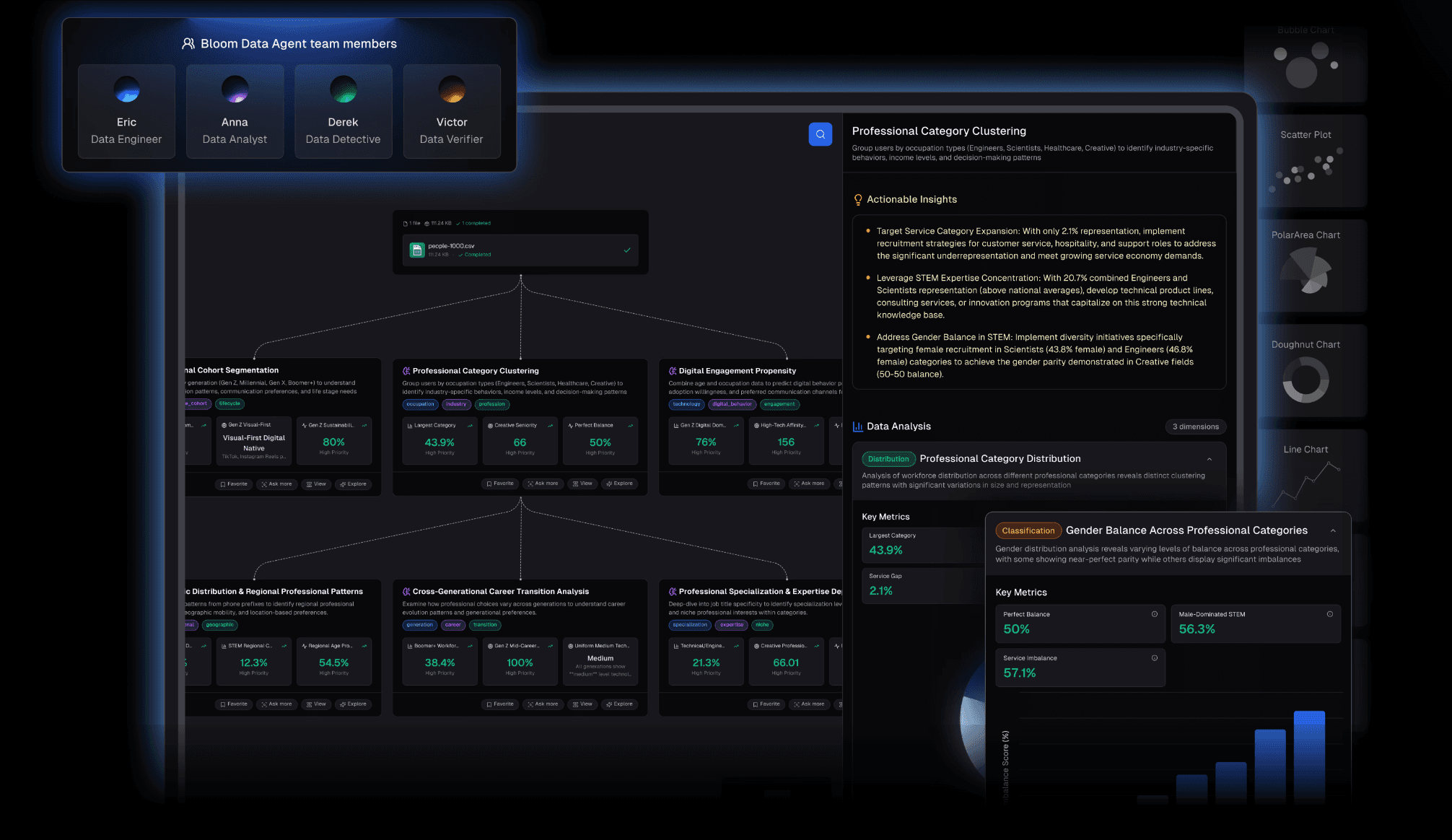
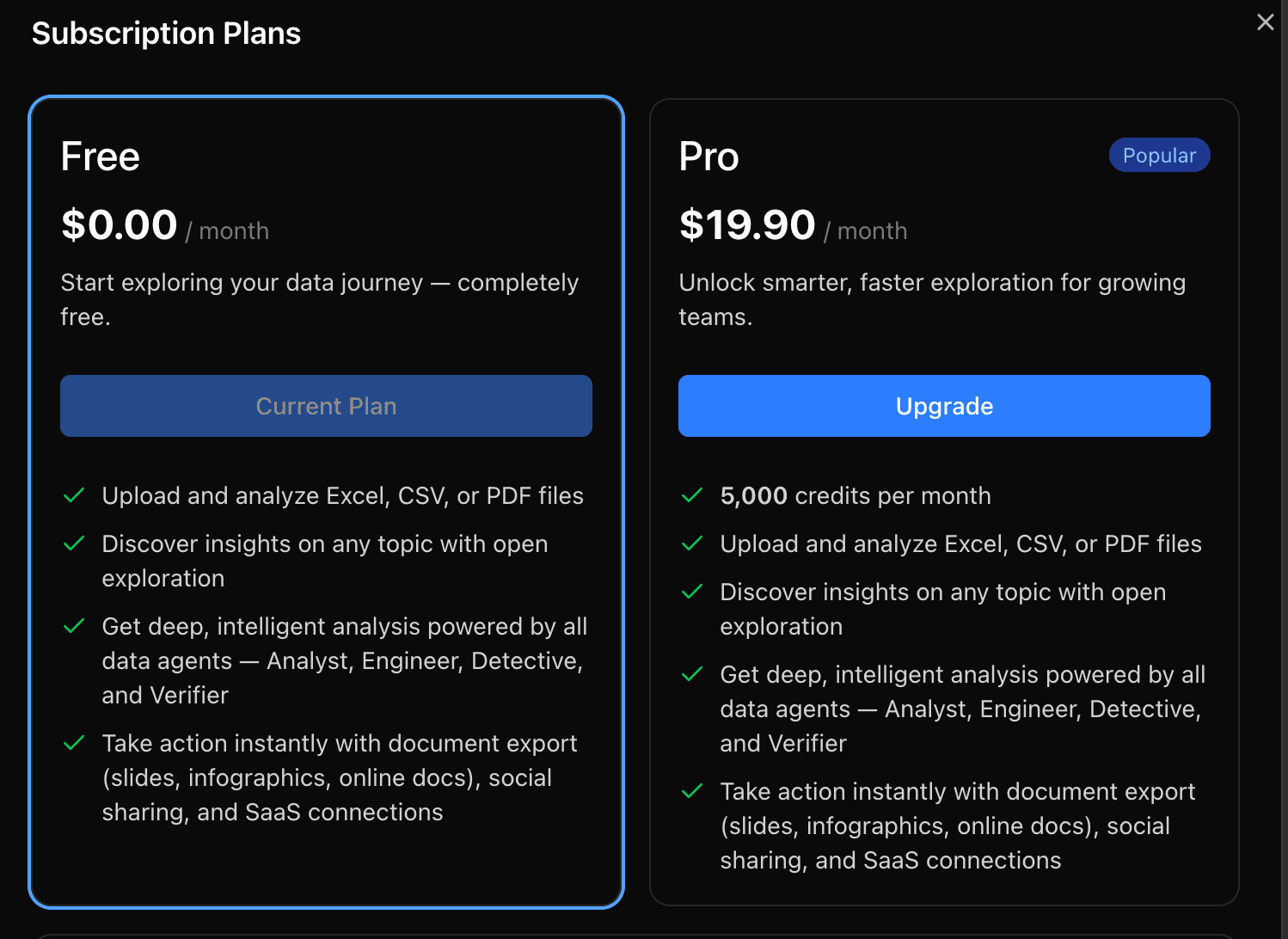
Powerdrill Bloom is an AI-driven presentation generation tool designed to transform static PDFs into clean, fully editable PowerPoint slides. Instead of simply copying elements from one format to another, Bloom analyzes document structure, identifies key content blocks, and rebuilds the entire presentation with improved layout, readability, and visual hierarchy. This makes it especially valuable for professionals who need presentation-ready output rather than raw converted slides.
Key Features
AI-enhanced slide reconstruction that intelligently formats titles, bullet points, tables, and images.
Smart design optimization, automatically improving spacing, alignment, and visual consistency.
Support for complex PDFs, including multi-page reports, charts, diagrams, and scanned documents.
One-click export to fully editable PowerPoint (.pptx) files.
Seamless integration with the Powerdrill data analysis ecosystem, enabling users to combine insights, visuals, and PDF content into polished slides.
Pros
Produces presentation-ready slides with minimal manual editing.
Preserves structure even in complex PDF layouts.
Handles large files quickly and accurately.
Cons
Requires an internet connection for AI processing.
Advanced design templates and premium export options require a paid plan.
Best For
Professionals, analysts, educators, and teams who want to turn PDFs into polished, audience-ready presentations with the help of AI.
Pricing
Freemium model with paid upgrades for advanced design features and higher usage limits.
2. Smallpdf
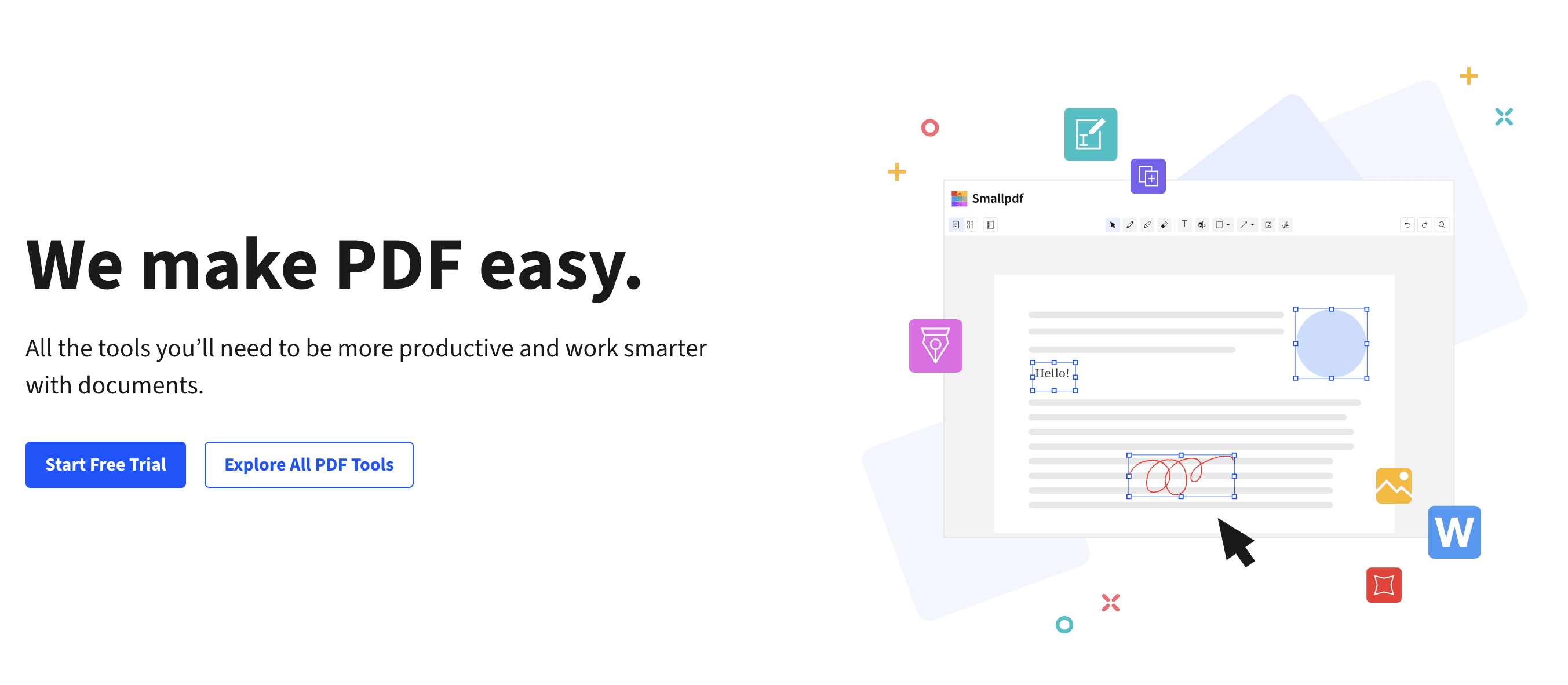
Smallpdf is a widely-used online PDF conversion platform based in Switzerland. It offers a straightforward “PDF to PPT” tool that lets users upload a PDF and get an editable PowerPoint (.pptx) file within seconds. The interface is browser-based, no installation is required, and it emphasizes speed and ease of use for general users.
Key Features
Upload or drag-and-drop a PDF and convert to PowerPoint instantly.
Works from any device (Windows, Mac, Linux, iOS, Android) via a browser—no software needed.
Maintains layout, text, and images from the original PDF file for editable output.
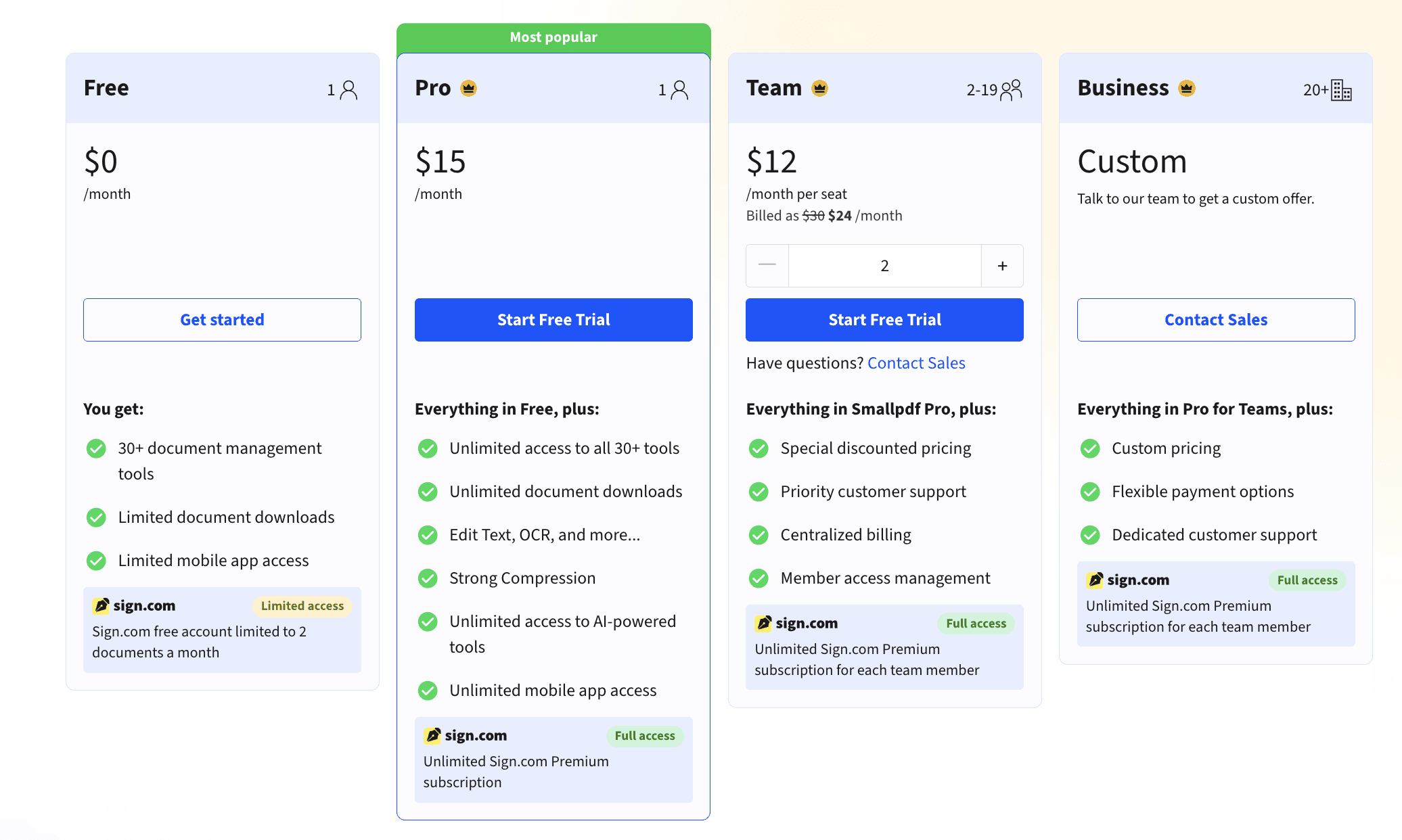
Additional PDF toolset: besides conversion to PPT, offers editing, compression, merge/split, OCR in Pro tier.
Security promise: TLS encryption during transfer and automatic deletion of files after one hour.
Pros
Very easy and fast to use—great for single conversions or general users.
No registration required for basic usage.
Works across platforms and devices.
Good free-tier entry point.
Cons
Doesn’t include advanced AI slide-layout optimization (as in specialized tools).
Free version may have limits (file size, features) compared to paid tiers.
For very complex layouts (e.g., heavy charts/tables) adjustments may still be required post-conversion.
Best For
Students, educators, business users, or anyone needing quick conversion of a PDF into an editable PowerPoint without needing heavy design optimization.
Pricing
Basic conversion is available for free; Pro subscription unlocks higher limits, OCR features, batch processing, and full access to the broader PDF toolset.
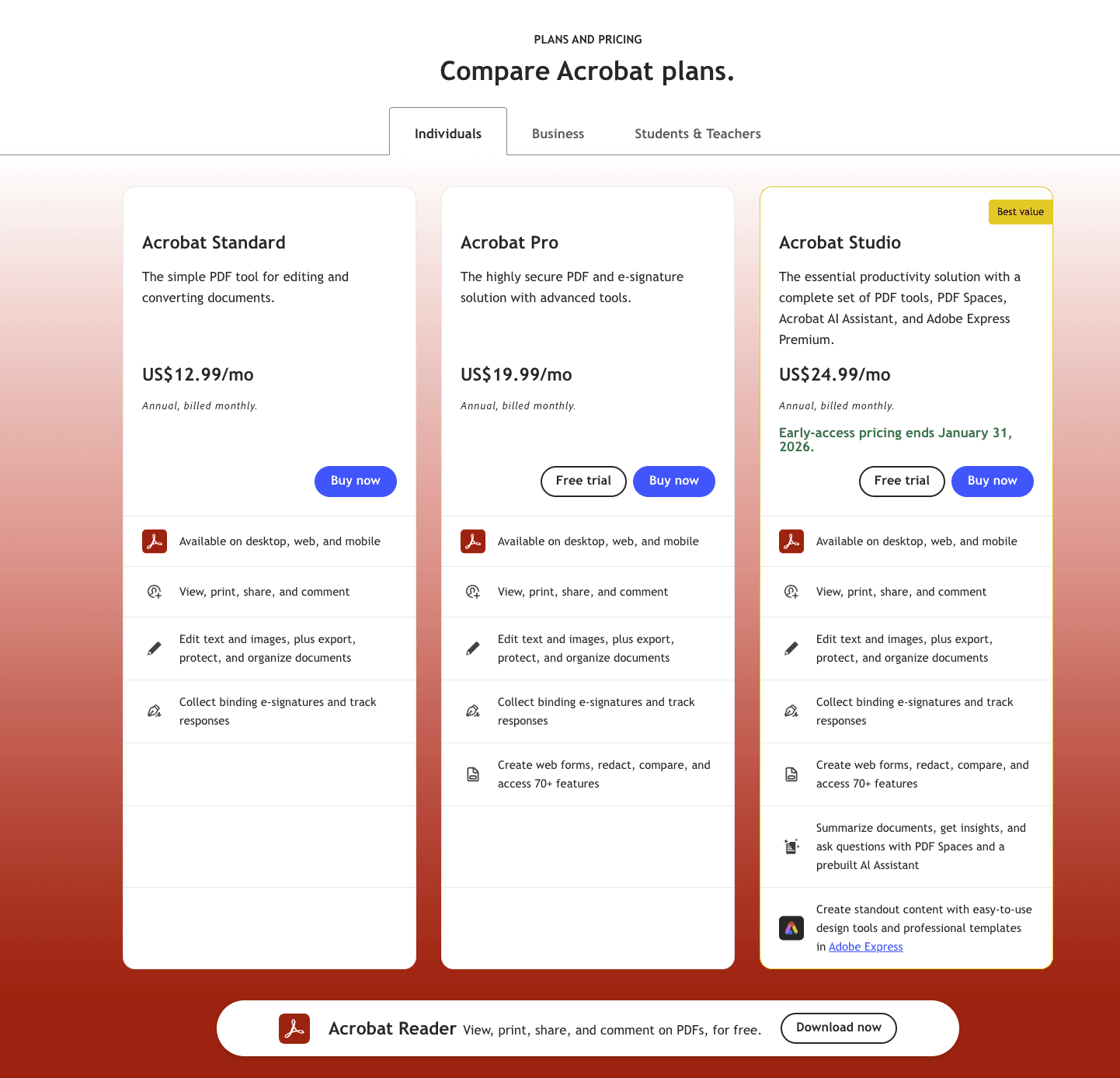
3. Adobe Acrobat Pro DC
Adobe Acrobat Pro DC is one of the most reliable and precise PDF tools on the market, developed by the creators of the PDF format itself. Its PDF-to-PowerPoint conversion is known for exceptional accuracy, especially when handling complex layouts, vector graphics, charts, and high-resolution visuals. As a desktop software with cloud integrations, Acrobat Pro offers enterprise-level performance suitable for organizations that need consistent, professional output.
Key Features
High-fidelity PDF to PPT conversion that preserves fonts, vector graphics, tables, and formatting with exceptional precision.
Supports scanned PDFs with built-in Adobe OCR to convert text into editable PPT content.
Batch processing via Acrobat tools or Adobe Document Cloud workflows for teams handling large volumes.
Cross-platform availability on Windows, macOS, and web.
Advanced PDF editing tools, making it more than just a converter—ideal for quality control before exporting.
Pros
Best-in-class conversion accuracy for complex documents.
Reliable and stable, suitable for enterprise and professional use.
Converts scanned or image-heavy PDFs extremely well thanks to Adobe’s OCR engine.
Cons
Higher price compared to most online tools.
Requires installation; heavier system requirements.
Overkill for users who only need occasional basic conversion.
Best For
Enterprises, consultants, designers, and professionals needing near-perfect layout preservation—especially in slides with detailed charts, reports, or graphics.
Pricing
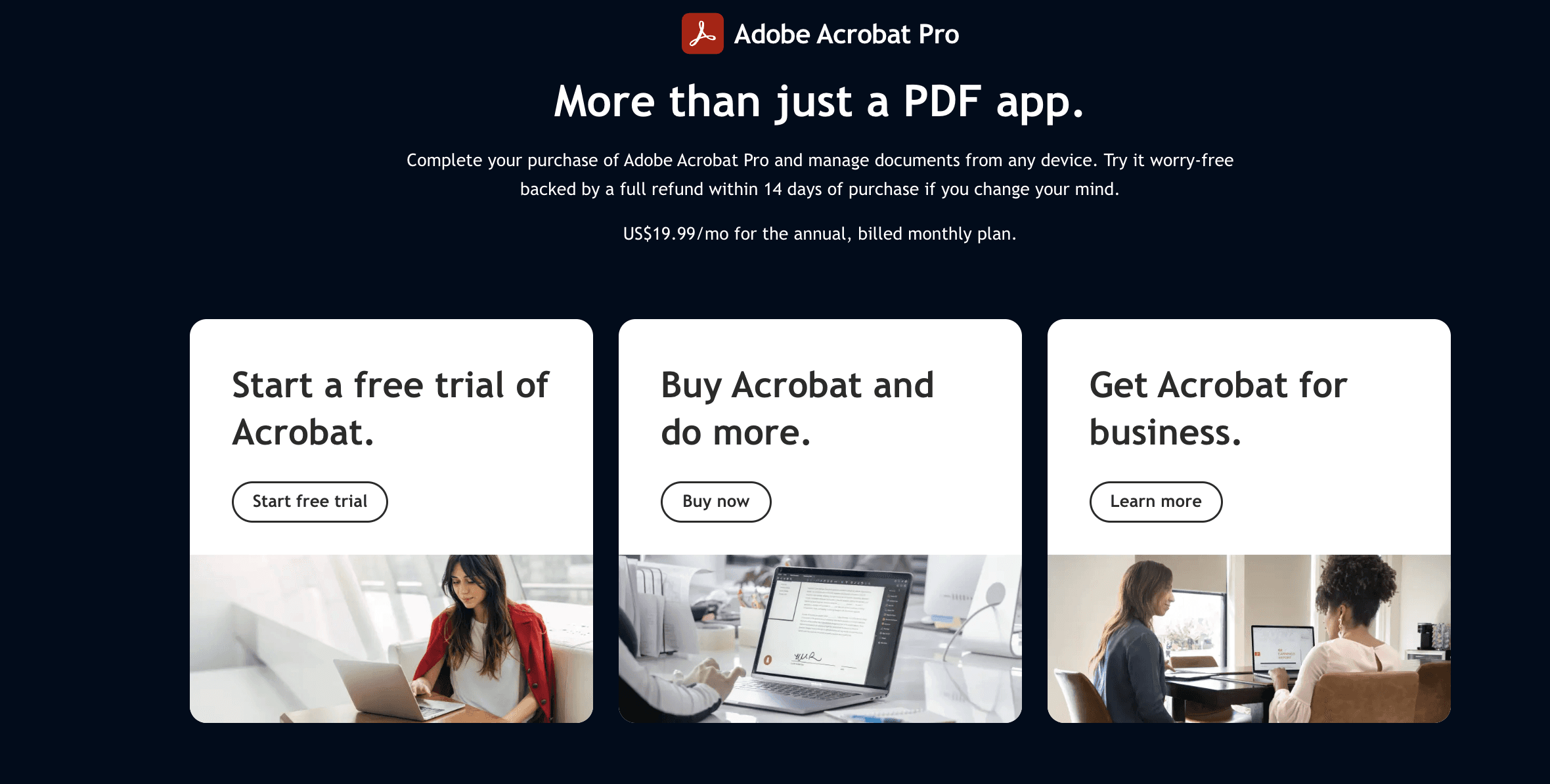
Subscription-based model with Adobe Acrobat Pro DC plans; no permanent license option. Includes access to Adobe Document Cloud services.
4. iLovePDF
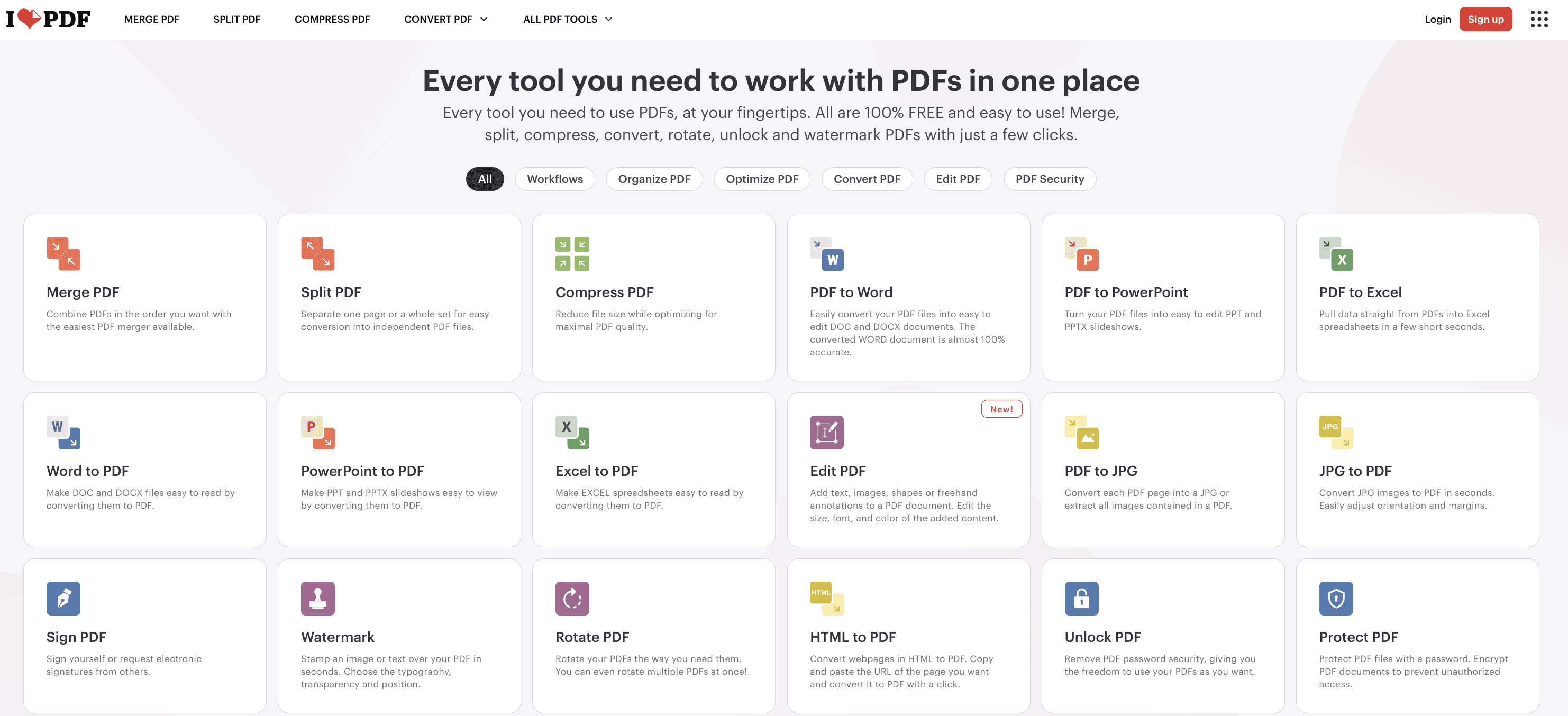
iLovePDF is a popular web-based PDF toolkit offering a clean, intuitive interface and a wide range of document utilities. Its PDF to PPT converter focuses on simplicity and accessibility, allowing users to upload a file and download an editable PowerPoint within seconds. As a cloud platform with both free and premium tiers, iLovePDF is well-suited for casual users who want quick results without installing software.
Key Features
One-click PDF to PPT conversion directly in the browser.
Mobile and desktop apps available for users who prefer offline or on-device processing.
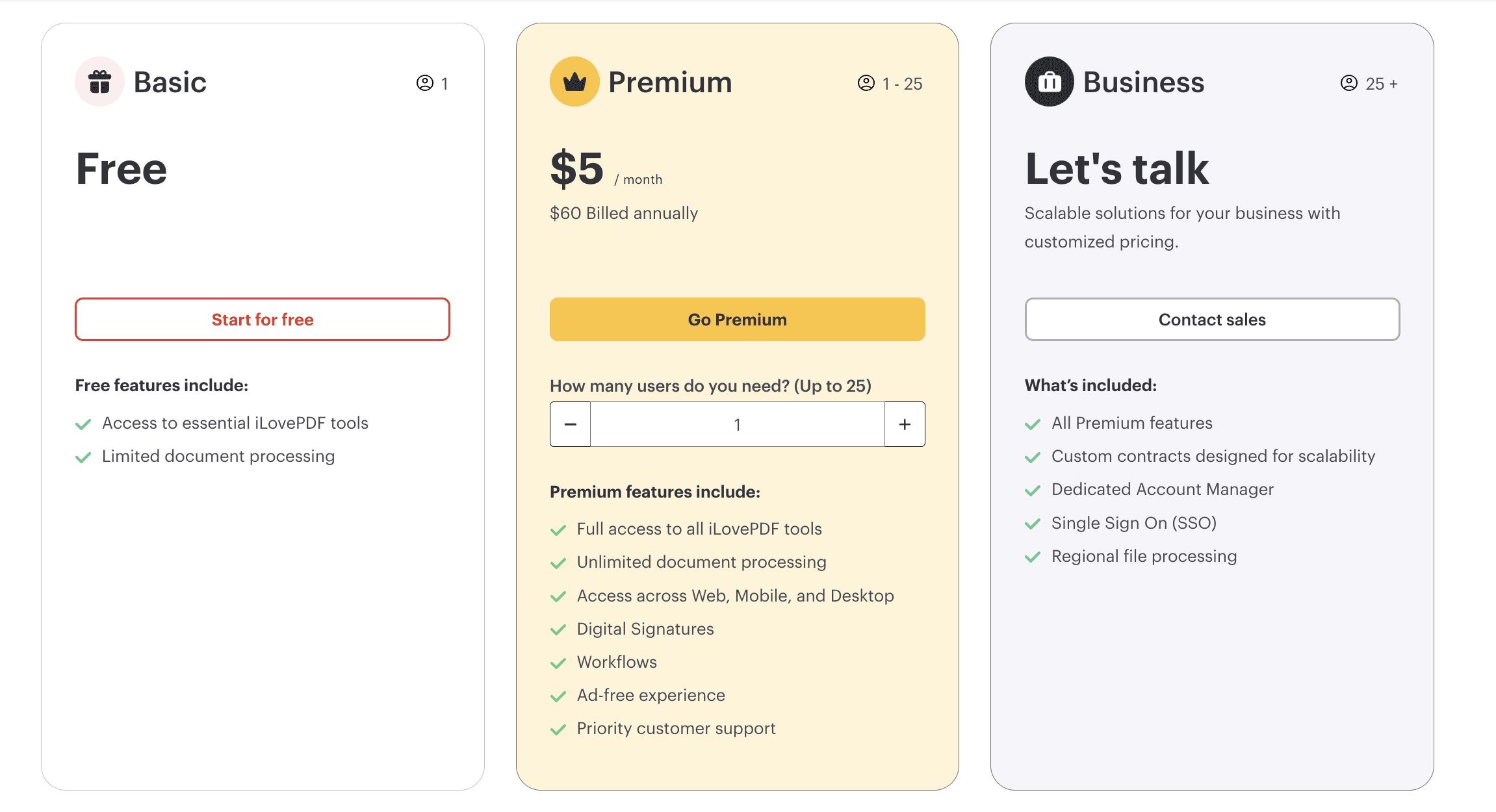
Batch conversion supported in the Premium and Business plans.
Integrated OCR for converting scanned PDFs into editable text.
Full PDF toolkit, including merge, split, compress, watermark, and format conversion tools.
Pros
Very easy to use with a beginner-friendly interface.
Offers both web and app versions, providing flexibility.
Free tier works well for simple, small conversions.
Cons
Free plan has limitations on file size, daily conversions, and access to Premium features.
Conversion quality is good but not as strong as Adobe or AI-powered tools for complex layouts.
Requires a stable internet connection for the online converter.
Best For
Students, freelancers, and general users who need lightweight, hassle-free PDF to PPT conversion with a broad set of additional PDF utilities.
Pricing
Freemium model. Premium and Business plans unlock unlimited conversions, OCR, higher file size limits, and batch operations.
5. PDFConverter.com
PDFConverter.com is a long-standing online and desktop solution focused specifically on high-quality file conversions. Its PDF to PPT converter is designed to maintain the original formatting as closely as possible, making it a dependable choice for users who need accurate, editable slides without complex AI enhancements. The platform is lightweight and straightforward, making it ideal for quick, clean conversions.
Key Features
Accurate PDF to PowerPoint conversion that preserves formatting, fonts, and image placement.
Online and desktop versions available for users who prefer offline functionality.
Supports scanned PDFs with OCR included in paid plans.
No registration required for basic online conversion.
Multi-format support, including PDF ↔ Word, Excel, PowerPoint, and more.
Pros
Fast conversion with consistent layout retention.
Simple, no-frills interface suitable for any user.
Desktop version ensures privacy by processing files locally.
Cons
Advanced features like OCR and unlimited conversions require a paid subscription.
Lacks AI-powered slide optimization or design enhancement.
Web version has file-size limits for free users.
Best For
Users who want fast, accurate PDF-to-PPT conversion without additional design features—ideal for everyday office tasks and slides that require minimal reformatting.
Pricing
Free for basic conversions. Paid plans unlock OCR, unlimited conversions, and full desktop functionality.
6. CleverPDF
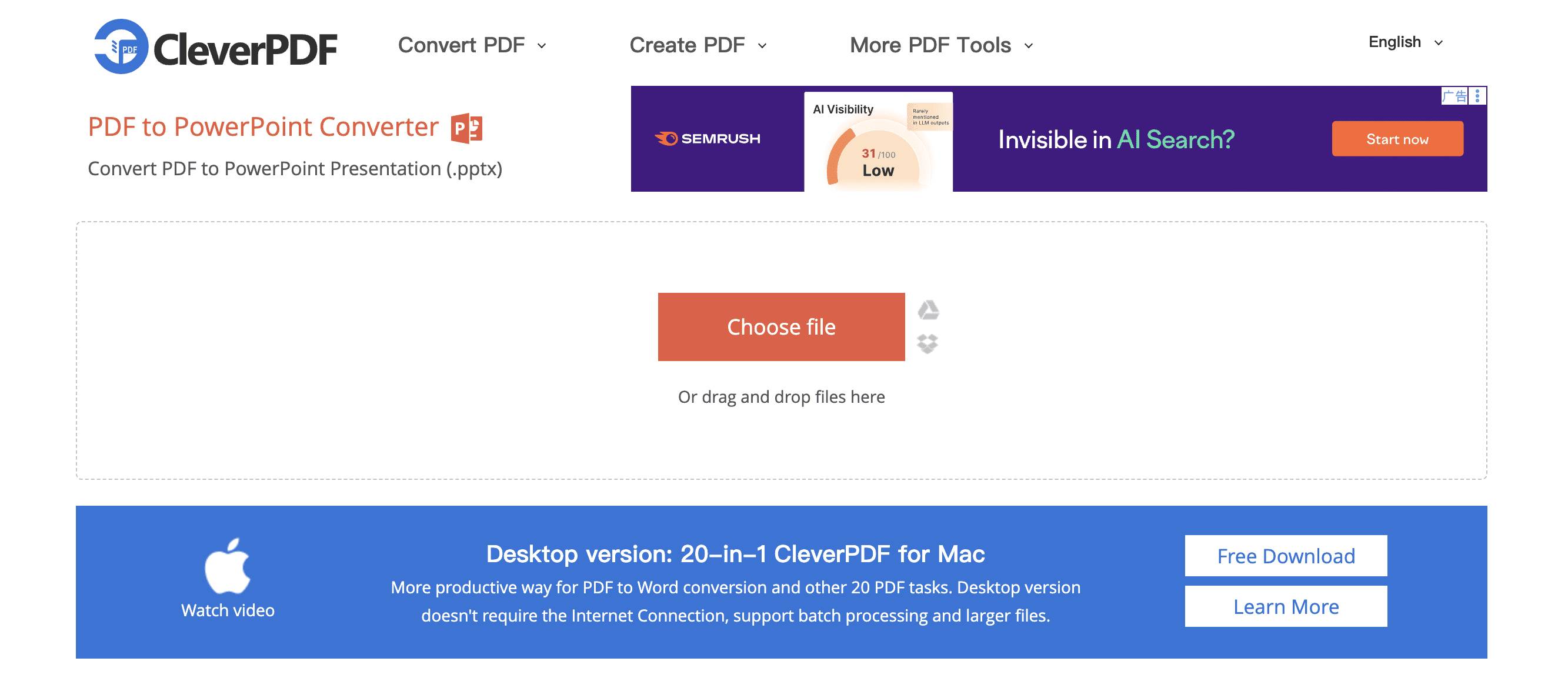
CleverPDF is a versatile PDF toolkit that offers more than 40 document-related tools, including a reliable PDF to PPT converter. Its focus is on flexibility: users can choose between the web version for quick online conversions or the desktop app for offline, privacy-friendly processing. CleverPDF is known for handling layout-heavy documents well and preserving slide structure effectively.
Key Features
Online and offline conversion options with consistent output quality.
Accurate layout preservation for text, tables, charts, and images.
Batch processing available in the desktop version.
Full PDF toolkit including compression, OCR, merging, splitting, watermarking, and file format conversions.
Supports encrypted PDFs, allowing users to convert password-protected files once unlocked.
Pros
Both online and desktop tools available—good balance of convenience and privacy.
High-quality conversion for documents that rely on strong formatting.
No account required for standard conversions.
Cons
Online version has daily task limits for free users.
OCR and premium batch features require desktop or paid plans.
No AI-based slide enhancement or design optimization.
Best For
Users who need reliable formatting preservation and prefer having both online and offline options—especially useful for corporate or sensitive documents.
Pricing
Free online usage with limitations. One-time purchase available for the desktop version; no mandatory subscription.
7. HiPDF
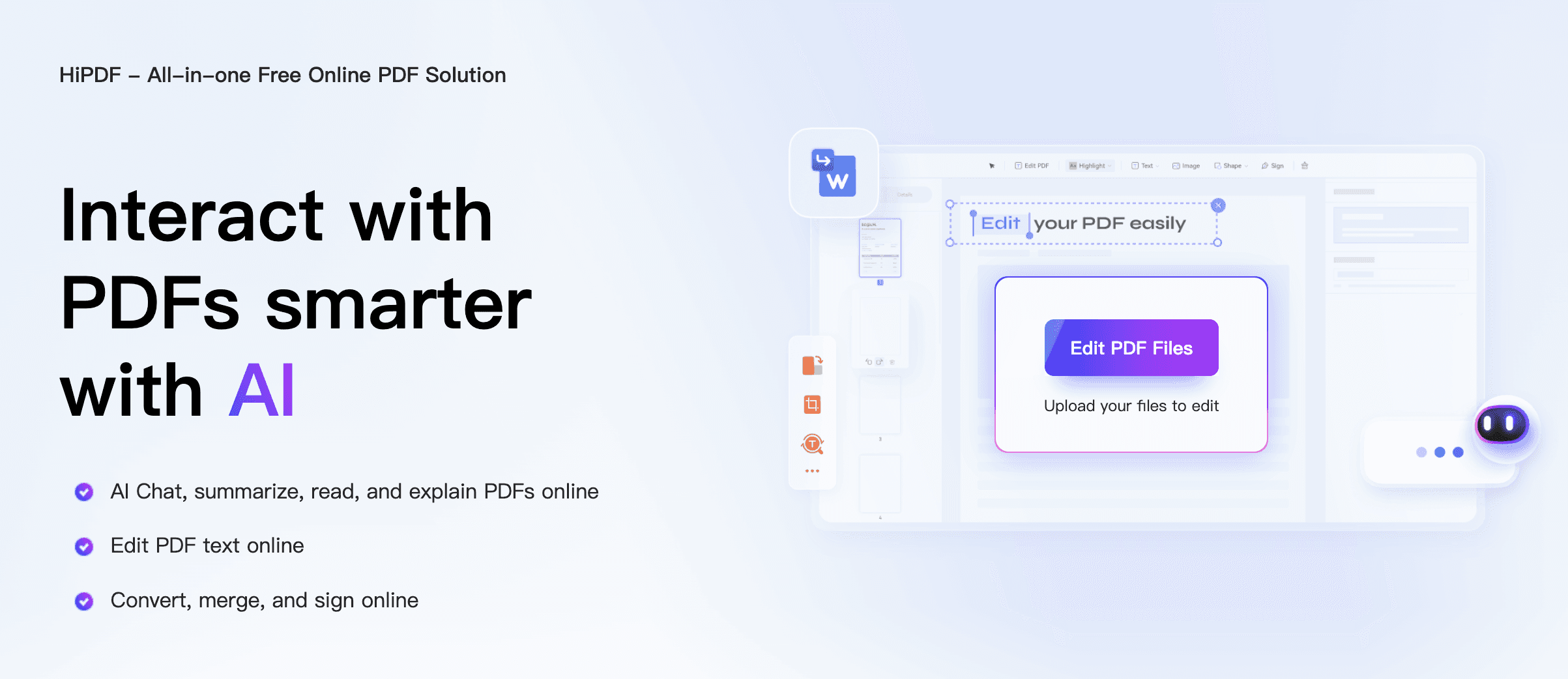
HiPDF, developed by Wondershare, is a cloud-based document management platform offering a wide range of PDF tools. Its PDF to PPT converter is built for users who need a smooth, browser-based experience with dependable output quality. With strong integration across Wondershare’s ecosystem (including PDFelement), HiPDF ensures consistent formatting and supports both simple and complex PDF layouts.
Key Features
Browser-based PDF to PPT conversion with fast processing.
AI-powered OCR available in the Pro version for scanned documents.
Cross-platform compatibility, accessible from Windows, macOS, Linux, iOS, and Android.
Cloud syncing with Wondershare accounts for easy file management.
Full document toolkit, offering more than 40 PDF utilities such as editing, merging, compressing, and format conversion.
Pros
Intuitive interface suitable for beginners.
Reliable conversion quality for mixed-content PDFs.
Strong cloud integration for users already in the Wondershare ecosystem.
Cons
Free version limits file size, daily usage, and OCR capability.
Requires online access for most features unless combined with PDFelement.
No AI-driven slide design or advanced layout enhancement.
Best For
Users who want a modern cloud-based solution with consistent conversion quality and access to a comprehensive PDF toolkit.
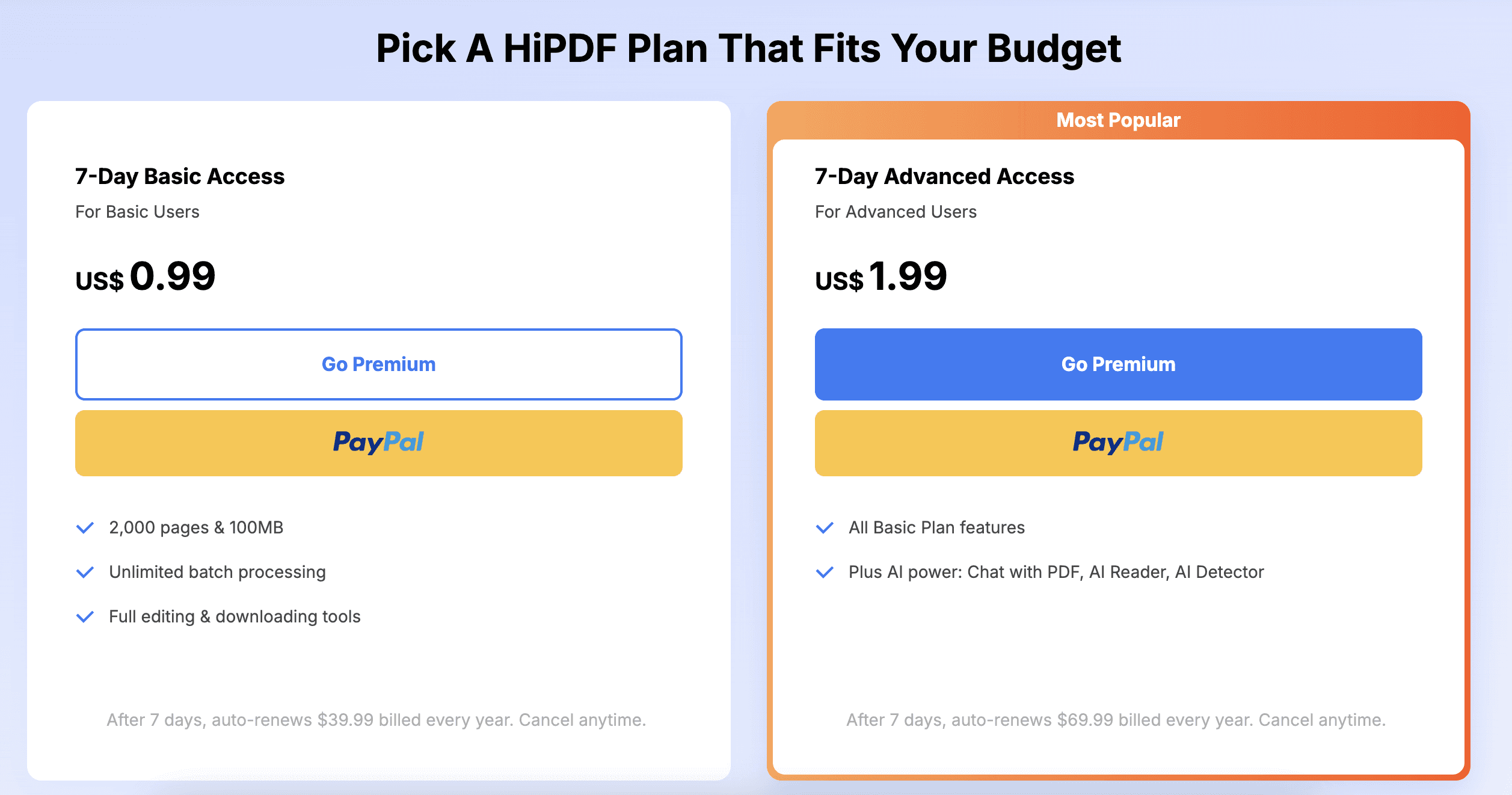
Pricing
Freemium model. Paid Pro plans offer unlimited conversions, OCR, higher file size limits, and cloud features.
8. WPS Office
WPS Office is a full productivity suite that includes Word-, Excel-, and PowerPoint-compatible applications, along with built-in PDF tools. Its PDF to PPT conversion feature is integrated directly into the WPS PDF module, making it convenient for users who already rely on the WPS ecosystem. Known for its lightweight design and strong compatibility with Microsoft formats, WPS Office provides reliable conversions suitable for both personal and professional use.
Key Features
Built-in PDF to PPT converter within the WPS PDF application.
Accurate layout preservation, especially for text-heavy or report-style PDFs.
OCR functionality available in the Premium plan to convert scanned PDFs into editable slides.
Desktop & mobile support, including Windows, macOS, Linux, Android, and iOS.
Integrated office suite, allowing users to edit documents immediately after conversion.
Pros
Convenient if you already use WPS Office for everyday work.
Fast conversion with good accuracy for typical PDFs.
Works offline on desktop, improving security for sensitive files.
Cons
Advanced features (OCR, batch processing, large file support) require a subscription.
Conversion may struggle with extremely complex visual layouts.
Fewer AI features than dedicated presentation-generation tools.
Best For
Users who want an all-in-one office suite with built-in PDF tools—ideal for everyday office tasks, education, and small businesses.
Pricing
Free plan available with basic features; Premium subscription unlocks OCR, enhanced security, and unlimited conversions across devices.
9. Online2PDF
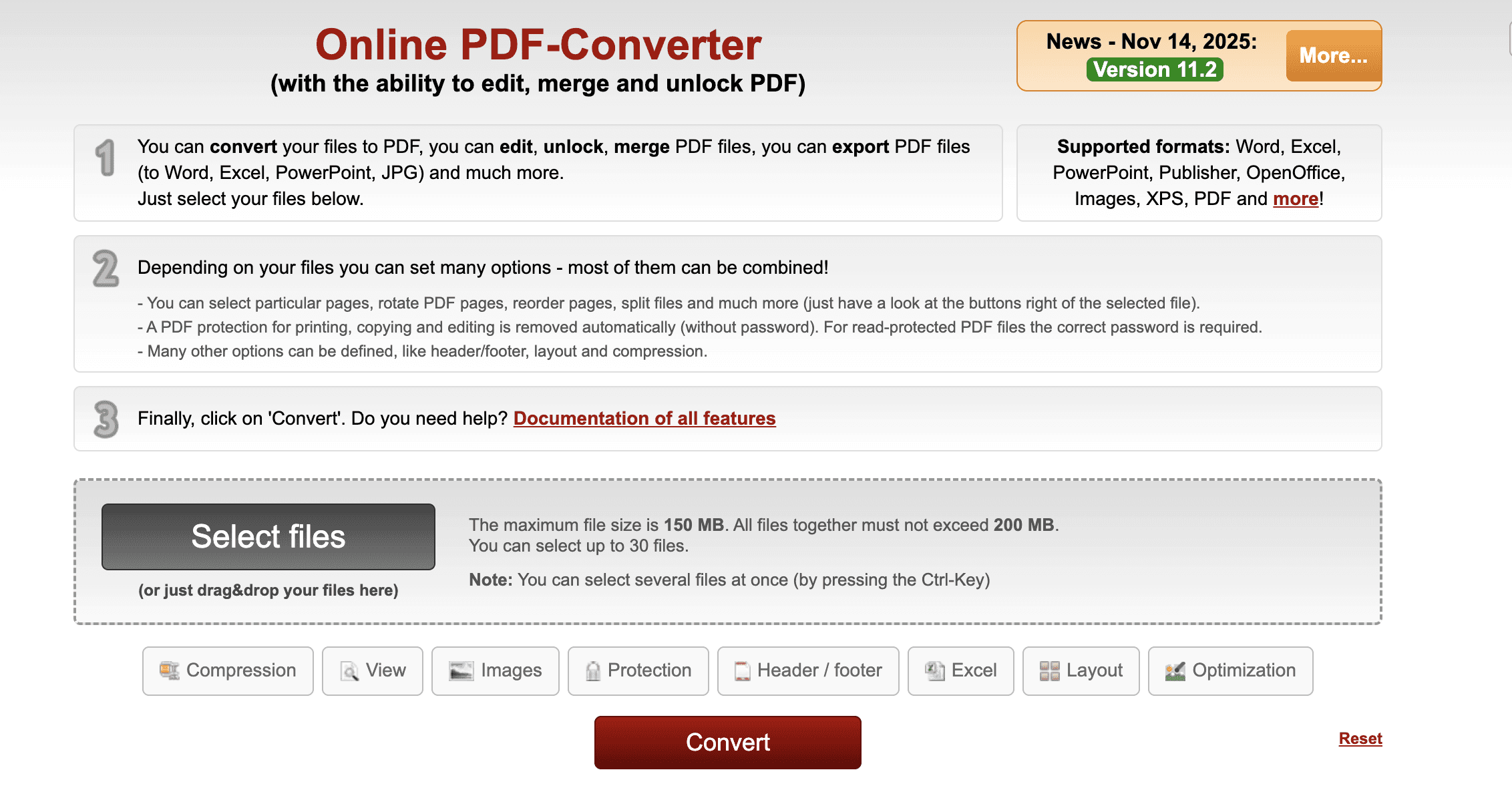
Online2PDF is a long-established, utility-focused web converter that supports a wide range of PDF operations, including PDF to PPT conversion. Although its interface is more functional than modern or polished, it offers strong flexibility and customization—allowing users to control aspects of the output such as page ranges, orientation, and compression. It is particularly useful for users who need fine-tuned control rather than AI-enhanced slide generation.
Key Features
Customizable PDF to PPT conversion with options for selecting specific pages, adjusting output settings, and merging documents.
Supports large file uploads (up to a combined total limit, typically higher than many free tools).
Batch conversion for multiple PDFs at once.
Offline-like processing done directly in the browser without requiring installation.
Additional utilities, including PDF editing, encryption, compression, and file format conversions.
Pros
Highly flexible output customization not commonly found in other free tools.
No sign-up required for standard functionality.
Handles multiple files at once with generous size allowances.
Cons
Outdated interface that may feel complex for casual users.
Conversion accuracy is generally good but not as refined as premium or AI-driven tools.
Features depend entirely on browser performance; no dedicated app available.
Best For
Users who want granular control over PDF conversion settings and need a free, browser-based solution for converting multiple files without logging in.
Pricing
Completely free to use with no paid tiers; however, daily task limits or file-size caps may apply.
10. Soda PDF
Soda PDF is a comprehensive PDF management platform available in both online and desktop versions. Its PDF to PPT converter is built for users who want dependable, high-quality output with a clean interface and additional editing options. Offering a polished user experience and a fully featured PDF suite, Soda PDF strikes a balance between ease of use and strong conversion performance.
Key Features
Reliable PDF to PPT conversion preserving slide structure, text formatting, and embedded visuals.
Online and desktop applications, giving users the choice between cloud convenience and offline privacy.
OCR technology in premium plans for converting scanned or image-based PDFs into editable PowerPoint slides.
Integration with popular cloud storage services like Google Drive, OneDrive, and Dropbox.
Complete PDF toolkit, including editing, signing, merging, annotating, and secure document management.
Pros
Clean, modern interface suitable for all user levels.
Strong accuracy even with mixed-content PDFs.
Flexible usage options across web and desktop platforms.
Cons
Free version has feature limitations and may include file size or daily conversion caps.
Requires paid subscription to unlock OCR, batch processing, and advanced editing.
No AI-driven slide enhancement or presentation design optimization.
Best For
Business users, students, and professionals who want a user-friendly PDF solution that delivers reliable conversion quality without needing advanced AI features.
Pricing
Freemium model with subscription tiers offering full access to OCR, batch features, unlimited conversions, and the complete Soda PDF suite.
Comparison Table: Top 10 PDF to PPT Converters in 2025
Tool | AI Support | Conversion Accuracy | Batch Conversion | Free Plan | Platform | Best For |
|---|---|---|---|---|---|---|
Powerdrill Bloom | ✅ | ★★★★★ | ✅ | ✅ | Web | Professionals who want AI-enhanced, presentation-ready slides |
Smallpdf | ❌ | ★★★★☆ | ✅ | ✅ | Web | General users needing fast, simple conversion |
Adobe Acrobat Pro DC | ❌ | ★★★★★ | ✅ | ❌ | Desktop / Web | Enterprises requiring top-tier accuracy |
iLovePDF | ❌ (OCR only) | ★★★★☆ | ✅ (Premium) | ✅ | Web / Mobile | Students & casual users |
PDFConverter.com | ❌ (OCR in paid tier) | ★★★★☆ | ❌ | Limited free | Web / Desktop | Users needing clean, basic conversion |
CleverPDF | ❌ (OCR in desktop) | ★★★★☆ | ✅ (Desktop) | Limited free | Web / Desktop | Users wanting both online & offline tools |
HiPDF | ❌ (AI OCR only) | ★★★★☆ | ❌ (Online) | Limited free | Web / Mobile | Cloud-focused users in Wondershare ecosystem |
WPS Office | ❌ (OCR in Premium) | ★★★★☆ | ❌ | Basic free | Desktop / Mobile | Users wanting PDF tools inside an office suite |
Online2PDF | ❌ | ★★★☆☆ | ✅ | Free | Web | Users needing flexible, customizable conversion |
Soda PDF | ❌ (OCR in paid) | ★★★★☆ | ❌ (Online) / Partial on desktop | Limited free | Web / Desktop | Everyday users who want a modern, easy interface |
How to Choose the Right PDF to PPT Converter
With so many tools available—ranging from simple online converters to advanced AI-powered platforms—the best choice depends on your specific needs, document complexity, and workflow. Here’s how to decide which converter is right for you:
1. Consider the Complexity of Your PDF
If your PDF contains charts, tables, infographics, or multi-column layouts, choose a tool known for high accuracy, such as Powerdrill Bloom or Adobe Acrobat Pro DC.
For simple text-based PDFs, tools like Smallpdf, iLovePDF, or WPS Office are usually sufficient.
2. Determine Whether You Need AI-enhanced Output
Choose Powerdrill Bloom if you want slides that look presentation-ready, with improved layout, structure, and design.
If you only need a basic editable PPT file without design enhancement, almost any standard tool will work.
3. Think About File Size and Volume
For converting large files or multiple PDFs at once, look for tools with batch processing, such as:
Powerdrill Bloom
Smallpdf
CleverPDF (desktop)
Online2PDF
Free tools often have file-size limitations, so premium plans may be necessary for heavy workflows.
4. Look at Privacy Requirements
If your documents contain sensitive data, opt for desktop-based tools or platforms with strong privacy guarantees, such as:
Adobe Acrobat Pro DC
WPS Office (offline)
CleverPDF desktop
Online-only services are convenient, but not ideal for confidential files unless they guarantee encryption and auto-deletion.
5. Consider Additional Features
Think about what else you may need beyond conversion:
OCR for scanned PDFs (HiPDF, Acrobat, Soda PDF, WPS Premium)
PDF editing (Adobe, Soda PDF, HiPDF)
All-in-one office suite compatibility (WPS Office)
AI data analysis and report generation (Powerdrill ecosystem)
6. Evaluate Your Budget
If you're looking for a free option:
Smallpdf (limited), iLovePDF, Online2PDF, CleverPDF (web version)
If you want full accuracy + extra tools:
Acrobat Pro, Soda PDF, HiPDF Pro
If you want AI-enhanced presentations:
Powerdrill Bloom is the most cost-efficient choice.
Conclusion
Converting PDFs into editable, well-structured PowerPoint slides is now faster and more accurate than ever. Whether you need a quick, free solution for simple documents or an advanced platform that enhances design and layout automatically, there’s a tool that fits every workflow in 2025.
For users who simply need clean, no-frills conversion, tools like Smallpdf, iLovePDF, and WPS Office offer reliable performance at little to no cost. Professional users or enterprises looking for greater precision—especially for complex reports, charts, or scanned documents—will find Adobe Acrobat Pro DC and Soda PDF consistently dependable.
But if you’re looking to go beyond basic conversion and generate presentation-ready slides with intelligent structuring, Powerdrill Bloom stands out as the top choice. Its AI-driven approach not only interprets PDF content accurately but also optimizes slide layout, making it ideal for meetings, business reports, training decks, and client presentations.
No matter which option you choose, this list of the top 10 PDF to PPT converters will help you find the right tool to streamline your workflow and turn static documents into powerful, editable slides.